User Guide
This guide is for parents using Hafalan Qur'an Juz 30 from Ruang Belajar Nisa for the first time. It explains what the app can do, how to use each screen, and what to know before accompanying your child through memorization.
This app is a PWA (a web app you can install on your phone's home screen) that accompanies memorization of Juz 30 — 37 surahs, from An-Nas to An-Naba, 564 verses in total. It provides Uthmani text, per-verse murottal audio, child voice recording, parent verification, weekly goals, automatic murajaah schedules, and daily reminders via Telegram. WhatsApp reminders will be released as soon as possible.
1Quick start
Follow this sequence the first time you open the app. Estimated time: 10–15 minutes.
- Create an account with your email and a password (at least 6 characters), then sign in.
- Activate a subscription on the access screen (monthly or yearly).
- On Home, press the + button in the top right to add a child profile. Enter a name and choose an emoji avatar.
- Open the Goal tab, choose a surah and verse range, then press Save goal.
- Open the Surahs tab, choose the shortest surah (An-Nas), then open it.
- Press the play button to listen to the per-verse murottal.
- Press the microphone button to record your child reciting the verse (up to 2 minutes per verse).
- Once the Recorded label appears, press Verify.
- Listen to your child's recording and the murottal side by side. Press Accurate if it is correct, or Needs more practice if not.
- Repeat until every verse in the surah is marked Memorized. The app automatically creates Murajaah schedules.
- In the Settings tab, set the reminder time and connect Telegram if you want a daily reminder.
After that, daily use mostly comes down to: open Home → check today's murajaah → continue with the next verse → record → verify.
2Before you begin
Devices and browsers
- The app is designed for phones (mobile-first), but it can still be opened on a tablet or computer.
- Use a modern browser: the latest version of Chrome, Edge, Safari, or Firefox.
- Voice recording requires a microphone and microphone permission from the browser.
- For the best experience, install the app on your home screen (the Install app / Add to Home Screen option in the browser menu). It will look like a regular app and work better offline.
What you need
- An active email address and a password.
- An internet connection the first time you use the app, when loading data, and when downloading audio. Once audio is downloaded, playback works without internet.
- Western Indonesian Time (WIB) as the reference for reminder schedules and murajaah dates.
One account, many children
One parent account can hold several child profiles. All progress, goals, and murajaah schedules are kept separate for each child.
3Creating an account and signing in
When opened for the first time, the app shows the Sign in screen.
Creating a new account
- Press Sign up here at the bottom of the form.
- Enter your Email and Password (at least 6 characters).
- Press Sign up.
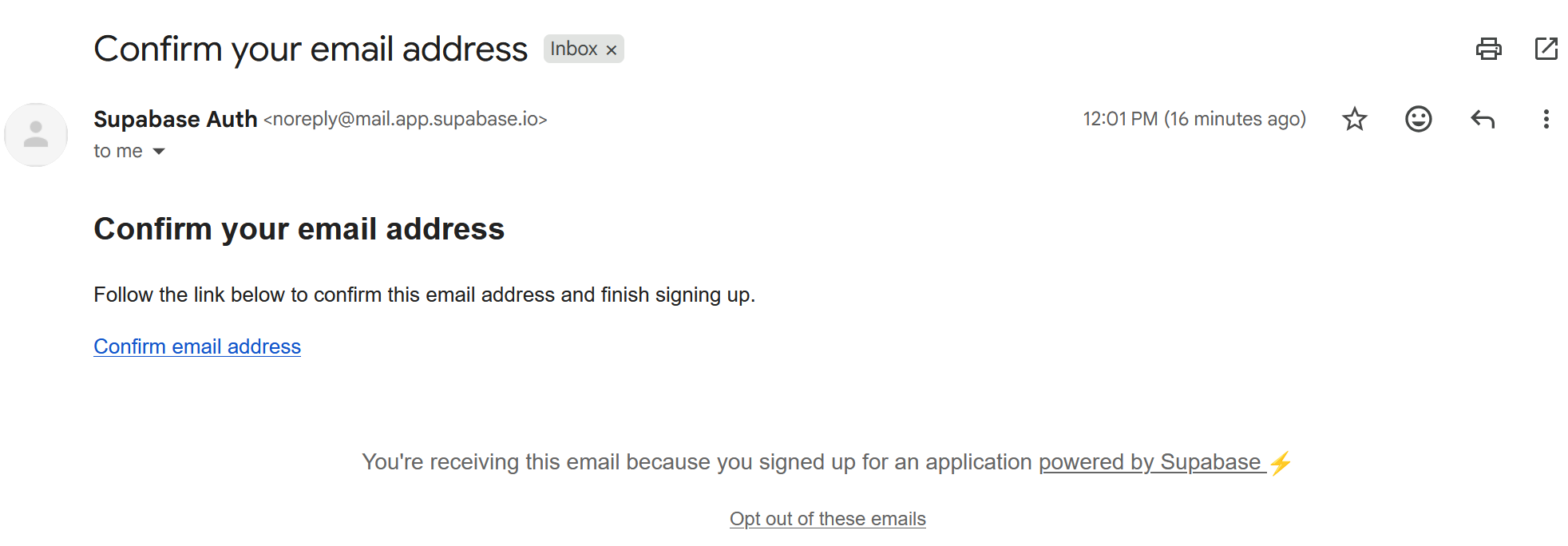
- If you are asked to check your email, open that inbox. The confirmation email is sent by Supabase Auth from
[email protected]with the subject Confirm your email address. Open it, select the Confirm email address link, then return to the app and sign in. If you do not see the email, check your spam or promotions folder too. If email confirmation is disabled by the app administrator, you will be signed in immediately after registering.
Signing in
- Enter your Email and Password.
- Press Sign in.
If the email or password is incorrect, the app shows an error message inside the form.
Forgot password
- On the Sign in screen, press Lupa kata sandi? (the button label is in Indonesian only).
- Enter the email address you used to register, then submit the reset request.
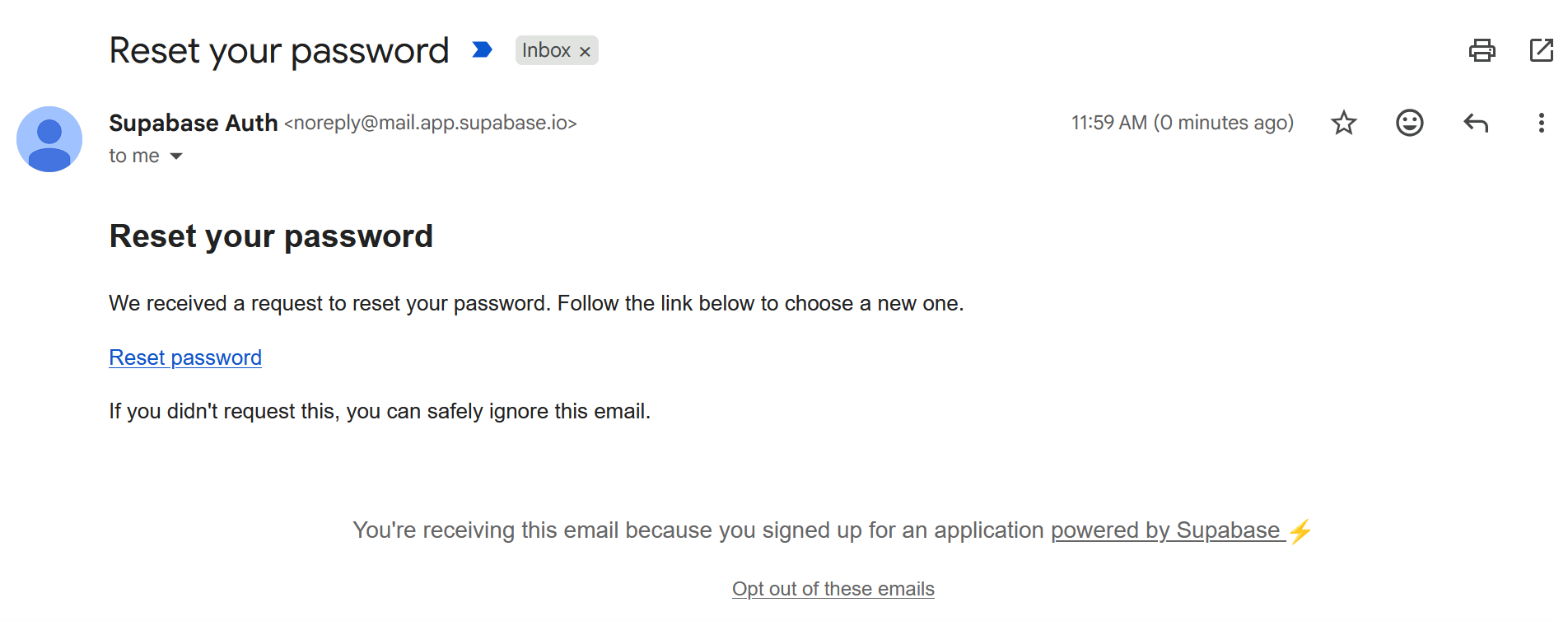
- Open that email inbox. The reset email is sent by Supabase Auth from
[email protected]with the subject Reset your password. - Select the Reset password link in the email, then create a new password.
- Return to the app and sign in with the new password.
If you do not see the email, check your spam or promotions folder too. If the link is no longer valid, repeat the steps above to request a new email.
Signing out
- From the Settings tab, press Sign out.
- From the subscription screen, press Sign out of account.
Signing out does not delete data. When you sign in again, your child data and progress are loaded from your account.
4Unlocking subscription access
After registering and signing in, the app shows the access screen. All core features unlock once a subscription is active (or during a trial, if one is provided).
This screen summarizes the features that will be unlocked:
- All 37 surahs of Juz 30, from An-Nas to An-Naba.
- Per-verse murottal audio, downloadable for offline use.
- Child voice recording and accurate / needs practice verification.
- Weekly goals and automatic murajaah schedules.
- Daily reminders via Telegram.
How to subscribe
- Choose Monthly subscription or Yearly subscription.
- The payment page opens in a new tab. Complete the payment there.
- Return to the app. The page checks the status periodically (about every 5 seconds, for up to 2 minutes).
- If the status has not changed, press Already subscribed? Refresh status.
- When available, the Manage subscription button opens the customer portal to change the payment method or cancel the subscription.
Available payment services
The payment page can use one of the following two services. Both show a bill summary and a discount code field, but the payment methods they offer are different.
Goakal: QRIS and virtual accounts
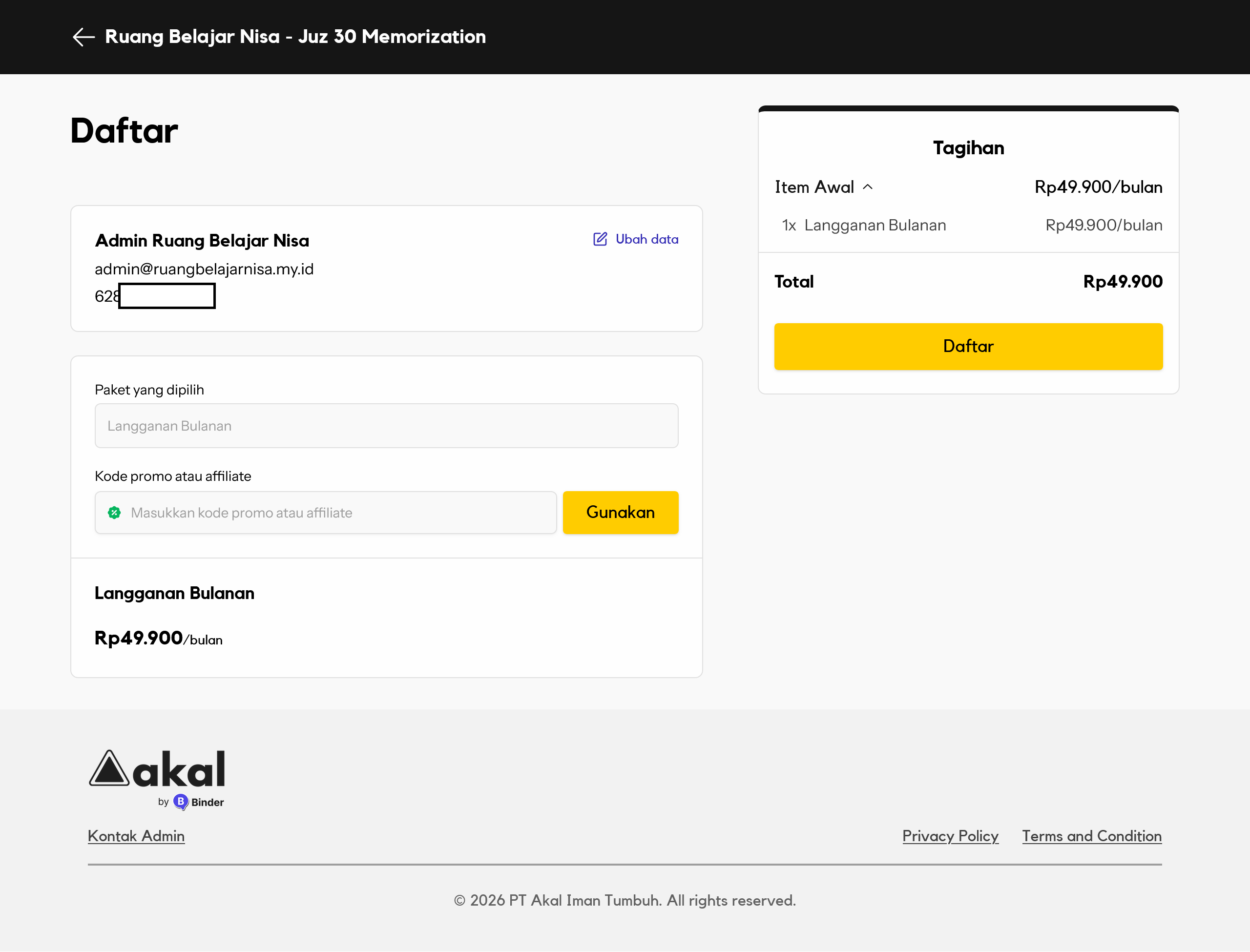
- On the Goakal page, fill in the registration details, then review the bill summary on the right.
- In the Kode promo atau affiliate (promo or affiliate code) field, enter the discount code, then press Gunakan (Apply). The bill total updates if the code is valid.
- Press Daftar (Register) to continue to checkout.
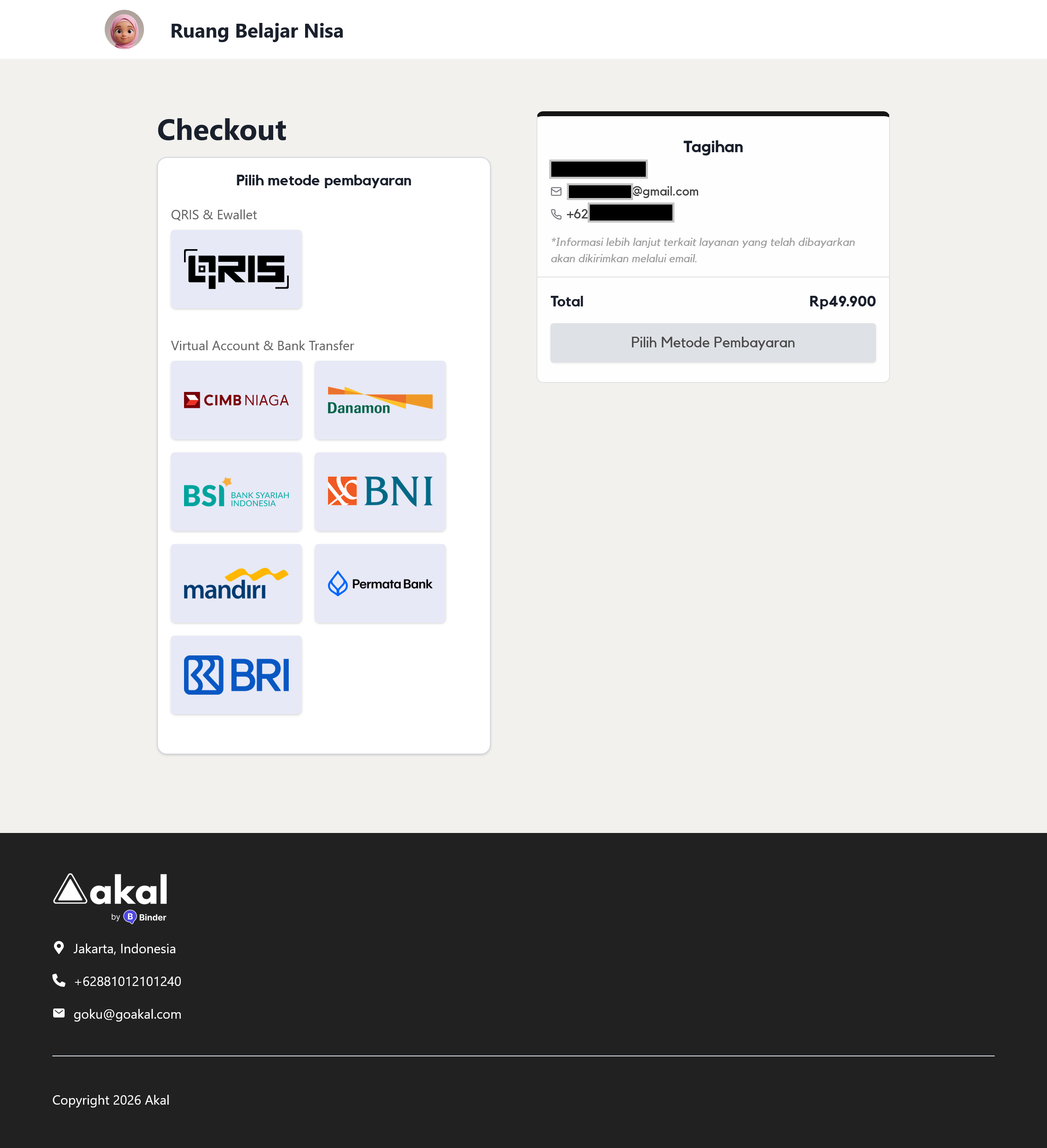
- Choose an available payment method: QRIS or Virtual Account & Bank Transfer (CIMB Niaga, Danamon, BSI, BNI, Mandiri, Permata, and BRI).
- Complete the payment by following the on-screen instructions, then return to the app.
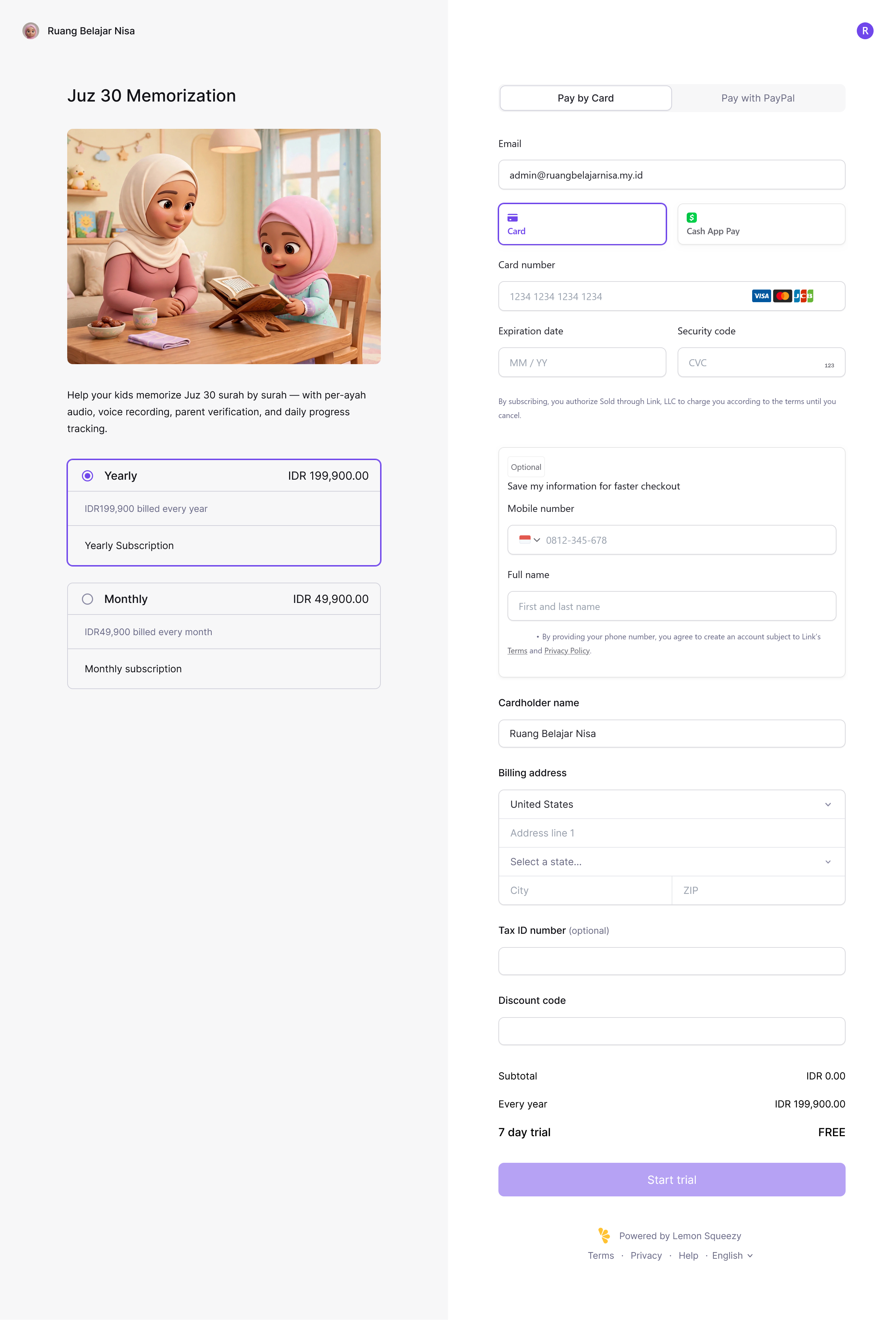
LemonSqueezy: debit/credit card and PayPal
- On the LemonSqueezy page, choose the Yearly or Monthly plan in the left column.
- Select the Pay by Card tab for a debit/credit card, or Pay with PayPal to pay with your PayPal account.
- Enter your email and the requested payment details. For a card, enter the card number, expiry date, and security code (CVC).
- Enter the discount code in the Discount code field near the bottom of the form, before completing the payment.
- Press the payment button at the bottom, finish the process, then return to the app.
Possible subscription statuses
| Status in the app | Meaning |
|---|---|
| Not subscribed | There is no active subscription. Feature access is still locked. |
| Trial | A trial is in progress. The remaining days are shown. |
| Active subscription | Full access is unlocked. |
| Payment pending | There is a payment issue, but access continues during the grace period. |
| Canceled | The subscription is canceled, but access continues until the end of the paid period. |
| Expired | Access has ended. A new subscription is required. |
5Adding a child profile
A child profile stores the child's name, avatar, memorization progress, goals, and murajaah schedules.
Adding the first child
- From Home, press the + button in the top right, or the Add child button on the empty screen.
- Enter the Child's name (up to 40 characters).
- Choose an Avatar from the available emoji options.
- Press Add child.
Once saved, you are taken to that child's profile page.
Adding another child
- Press the + button on Home, or the + Child chip in the profile row.
- Each child has their own progress and goals.
Switching between children
- A row of profile chips appears at the top of Home, Surahs, Goal, and Murajaah.
- Tap a child's name to switch. The last choice is remembered on this device.
- If the saved profile cannot be found, the app automatically selects the first child.
Editing a profile
- Open the child's profile (from Home: View profile, or tap the child's card).
- Press the pencil icon in the top right.
- Change the name or avatar, then press Save changes.
Deleting a profile
- From the edit profile page or the child profile page, press Delete child profile.
- Confirm in the panel that appears.
- Deleting a child profile deletes that child's progress, goals, and murajaah schedules.
- Voice recordings on the device are not deleted automatically; see Deleting data.
6Terms and statuses used by the app
Status per verse
Each verse has one status:
| Status | Meaning | How it appears |
|---|---|---|
| Not started | No recording yet and not yet assessed. | The initial status of every verse. |
| Recorded | The child has recorded and is waiting for parent assessment. | Automatically after a recording is saved. |
| Needs practice | The parent assessed the recitation as not yet accurate. | From the verification screen. |
| Memorized | The recitation was assessed as accurate. | From the verification screen. |
Quick flow:
Only verses marked Memorized count toward progress and surah completion.
Other terms
| Term | Meaning in the app |
|---|---|
| Memorized | The verse has been verified by a parent as accurate. |
| Surah completed | Every verse in the surah is marked Memorized. |
| Weekly goal | A verse range within one surah that you want to complete this week. |
| Murajaah | A schedule for reviewing completed surahs so memorization does not fade. |
| Needs review | The number of verses marked Recorded or Needs practice. |
| Murottal | Per-verse Qur'an recitation audio provided by the app. |
| Uthmani text | Verse text following the Uthmani mushaf. |
Navigation map
| Tab | Contents |
|---|---|
| Home | Progress summary, active goal, suggested approaches, today's murajaah. |
| Surahs | The 37 surahs of Juz 30 and the entry point to verse details. |
| Goal | Create and review weekly goals. |
| Murajaah | Due and upcoming reviews, plus history. |
| Settings | Account, subscription, reminders, Telegram, WhatsApp, offline downloads, privacy. |
7Setting weekly goals
Goals help you stay focused: one verse range you want to complete this week.
Creating a goal
- Open the Goal tab.
- Choose a Surah from the list of 37 surahs.
- Choose the Starting verse and Ending verse.
- Check the summary below the form, for example "An-Nas verse 1–4 • 4 verses".
- Press Save goal.
When you change the surah selection, the verse range is automatically filled from verse 1 to the last verse. You can narrow it, for example to just 3 verses this week.
Important rules
- Each child has only one active goal.
- Saving a new goal automatically closes the previous active goal as completed.
- A goal stays active until it is replaced or marked complete; the app does not end a goal automatically when the week changes. Parents usually replace the goal each week.
- Goal progress is calculated from verses marked Memorized within that range.
- A goal can be marked complete manually with the Mark complete button on the goal card, even if not all verses are memorized yet.
- Completing a goal does not trigger a murajaah schedule. Murajaah is triggered by completing every verse in a surah.
Viewing previous goals
At the bottom of the Goal tab, the Previous goals list shows completed goals and the week they started.
8Main flow: memorizing one surah
8.1 Choosing a surah
- Open the Surahs tab.
- The list starts with the shortest surahs first: An-Nas, Al-Falaq, Al-Ikhlas, and so on through An-Naba.
- Each card shows the learning order number, surah name, Arabic name, number of verses, number of memorized verses, and a progress bar.
- Tap a card to open the surah details.
8.2 Surah detail page
This page shows:
- The surah name, number of verses, and Arabic name.
- A progress bar and the number of memorized verses (e.g.
2/6 verses memorized). - A Completed badge when every verse is memorized.
- A notice if any verse audio is not yet available on the server.
- A list of verses, each with Arabic text, status, play-audio button, record button, and a Verify button when relevant.
8.3 Listening to the murottal
- Press the play button on a verse row to play that verse's murottal audio.
- While audio plays, a thin progress bar appears below the verse row.
- Press the same button to stop.
- Audio playback stops automatically when you move to another page.
- If audio is not yet available, the row can still be recorded and verified.
8.4 Recording and verifying
- Press the microphone button on the verse being memorized.
- Allow microphone access if the browser asks.
- A recording runs for up to 120 seconds and stops automatically at the limit.
- Press the stop button to end it early.
- Once saved, the verse status becomes Recorded and the Verify button appears.
- Open verification, listen, then choose Accurate or Needs more practice.
- Repeat for the next verse.
See Recording your child's voice and Parent verification for details.
8.5 Completing a surah
- Once every verse is marked Memorized, the surah is considered completed.
- The app automatically creates four murajaah schedules: +1, +3, +7, and +30 days.
- Schedules are created only once per child per surah; repeating verification does not duplicate them.
9Recording your child's voice
Recording is the heart of the verification flow: the child recites, and the parent listens back.
How to record
- Open a surah and find the verse you want.
- Press the microphone button.
- Recite the verse. A timer runs next to the verse status (e.g.
00:12 / 02:00). - Press the stop button or wait until the 2-minute limit.
- The message "Recording saved on this device" appears and the status changes to Recorded.
Important facts about recordings
- Recordings are stored only on this device (IndexedDB in the browser). Recordings are not uploaded to the server.
- Re-recording the same verse replaces the previous recording for that verse.
- Recordings are not synced to other devices. If the child uses another phone, the recordings are not there.
- Clearing browser data (cache/site data) deletes the recordings.
- Deleting a child profile does not automatically delete recordings; use the dedicated button on the child profile page.
- If the microphone is blocked, the app shows a message asking you to grant microphone permission. Check the site permissions in your browser settings.
Duration limit
One recording is limited to 120 seconds (2 minutes). For long verses, split them into several parts or re-record at a comfortable pace. A recording that reaches the limit stops automatically and is still saved.
10Parent verification
Verification is the parent's assessment of the child's recording. This is where a verse status changes to Memorized or Needs practice.
Opening verification
The Verify button appears on a verse row when:
- the verse status is Recorded or Needs practice, or
- a recording is already saved for that verse.
The button can also be opened from the verification link after the child finishes recording.
Verification screen
This screen shows:
- The current verse status and the child's name.
- The Arabic text of the verse.
- Two players side by side: Child's recording and App audio (murottal).
- The recording duration, if available.
- Two assessment buttons: Accurate and Needs more practice.
- A Back without rating link.
Rating
Accurate
- The verse status becomes Memorized.
- The verse counts toward the child's progress and goal progress.
- If every verse in the surah is memorized, a murajaah schedule is created automatically.
- The app returns to the surah page and shows a confirmation message.
Needs more practice
- The verse status becomes Needs practice.
- By default, the old recording is deleted when you choose this option. Clear the checkmark on Delete the old recording when marking "needs more practice" if you want to keep the recording for comparison.
- The app returns to the surah page. The child can record again, then verify again.
Things to know
- Verification handles one verse at a time.
- There is no parent PIN in this version. Anyone holding the device can press the verification buttons.
- Verification is best done while listening, not just by reading the text.
- This app is a learning aid, not a replacement for a teacher or a tajweed expert.
11Monitoring progress
On Home
- The progress ring shows the number of verses the child has memorized.
- Below the ring you can see the number of completed surahs, e.g.
3/37 surahs. - The child card shows the name, avatar, and number of memorized verses.
- The View profile button opens the full details.
On the child profile
The child profile page shows:
- The progress ring and number of completed surahs.
- Three summary numbers:
- Memorized verses — total Juz 30 verses that have been verified.
- Surahs completed — the number of surahs whose verses are all memorized.
- Needs review — verses marked Recorded or Needs practice.
- This week's goal and its progress.
- Progress per surah for all 37 surahs.
- Buttons to delete the child's voice recordings and delete the profile.
Reading progress
- Progress only increases from verses marked Memorized. Recordings that have not been verified do not add progress.
- A surah is considered completed only when all its verses are memorized.
- Juz 30 contains 564 verses across 37 surahs.
12Murajaah: reviewing memorization
Murajaah is a schedule for reviewing surahs that have already been memorized so the memorization stays strong. The app uses a staged review pattern.
When schedules are created
- When every verse in a surah is marked Memorized, the app creates four schedules: +1 day, +3 days, +7 days, and +30 days.
- Schedules are created once per child per surah.
- Completing a weekly goal does not trigger murajaah.
- Marking a murajaah as done does not create a new schedule.
What the Murajaah tab contains
| Section | Meaning |
|---|---|
| Due today | Schedules dated today or earlier. |
| Upcoming | Schedules dated in the future. |
| Completed | History of the last 10 murajaah sessions marked done. |
How to use it
- Open the Murajaah tab or the Today's murajaah section on Home.
- To review, open the related surah from the Surahs tab, then read its verses again.
- When you finish reviewing, press Done on the murajaah card.
- The card moves to the Completed section.
Important notes
- Missed murajaah still appears as due; its date does not shift automatically.
- The app does not record a dedicated murajaah session. Marking Done is done manually by the parent.
- Home shows at most 3 due murajaah items; the All button opens the full list.
- Deleting a child profile also deletes their murajaah schedules.
13Suggested approaches for your child
On Home, the Suggested approaches section offers three learning packages:
| Package | Contents |
|---|---|
| 5 shortest surahs | An-Nas, Al-Falaq, Al-Ikhlas, Al-Kausar, Al-'Asr. |
| 10 shortest surahs | The first five surahs plus the next five short surahs. |
| Continue to the full Juz 30 | All 37 surahs, from An-Nas to An-Naba. |
How to use it
- Tap one of the packages. The choice is saved as the focus for the currently active child.
- The Continue this focus button appears. Press it to open the first unfinished surah in that package.
- Focus is saved on this device, separately for each child.
These packages are only a learning shortcut; the surah list in the Surahs tab still shows all 37 surahs.
14Telegram reminders
Daily reminders are sent through a Telegram bot. The app only stores your settings; message delivery is handled by a scheduling service on the server side.
Setting the reminder time
- Open the Settings tab.
- In the Daily reminders section, choose the Reminder time (WIB).
- Press Save.
- The default time is 15:00 WIB.
Messages are sent every day at that time. If there is no unfinished goal and no due murajaah, no message is sent.
Connecting Telegram
- In the Connect Telegram section, press Create code.
- The app shows a 6-digit pairing code.
- Press Open bot (if the bot link is available), then send that code to the bot.
- Once the code is recognized, the account is linked and Telegram is connected appears.
- If you need a new code, press Create new code. The old code is replaced.
Reminder message contents
A daily message usually contains:
- A greeting and the date.
- For each child: the goal surah and verse range, along with the number of verified verses.
- The list of murajaah due that day, or "none".
Messages only cover things that are still pending. Profiles without pending goals and without due murajaah do not receive a message.
The WhatsApp (coming soon) section only stores a number for a future feature. There are no WhatsApp reminders in this version.
15Offline mode and sync
The app can be used without internet once it has loaded and the audio has been downloaded.
Downloading Juz 30 audio
- Open the Settings tab.
- In the Offline mode section, press Download Juz 30 for offline.
- The process runs for all 564 audio files. A progress bar and file count are displayed.
- When finished, a summary shows how many files succeeded and failed.
- Repeat the download if any files failed.
Once downloaded, audio is stored in the browser cache and can be played without a connection.
While offline
- An Offline mode notice appears on Home.
- Changes such as adding a goal, saving a verse status, or marking a murajaah are queued and sent automatically when the connection returns.
- The number of pending changes is shown in the notice.
- Do not clear site data before the queue syncs, because unsent changes will be lost.
- Voice recordings are always stored locally and never join the sync queue.
Moving to another device
- Account data (children, goals, progress, murajaah) is loaded from the server when you sign in on a new device.
- Voice recordings do not move because they are only stored on the original device.
- Audio must be downloaded again for offline mode on the new device.
- The last selected child and focus choice are also stored per device.
16Settings and account
The Settings tab contains:
| Section | Function |
|---|---|
| Account | Email, subscription status, remaining trial days, and the Sign out button. |
| Daily reminders | Set the WIB reminder time. |
| Connect Telegram | Create a pairing code and open the bot. |
| WhatsApp (coming soon) | Store a number for a future feature. |
| Offline mode | Download all Juz 30 audio. |
| Privacy | Explanation of recording storage and text attribution. |
Subscription status can change from the access screen. If the subscription is canceled or expires, the app shows the access screen again when opened.
17Deleting data
Deleting voice recordings
- Open the child profile, then press Delete [name]'s voice recordings.
- All of that child's recordings on this device are deleted.
- Verified progress does not change.
- Recordings can also be deleted when you choose Needs more practice with the delete checkbox enabled, or when you re-record the same verse.
Deleting a child profile
- From the child profile page or edit profile page, press Delete child profile.
- All of that child's progress, goals, and murajaah schedules are deleted from the account.
- Voice recordings on the device are not deleted automatically.
- This action cannot be undone.
Clearing browser data
Clearing site data in the browser deletes:
- Child voice recordings.
- The queue of changes that have not synced.
- Audio already downloaded for offline use.
- The last selected child and focus choice.
Account data that has already synced remains on the server and will be loaded again when you sign in.
Signing out
Signing out does not delete any data. Local data on the device remains.
18Privacy and attribution
- Children's voice recordings are stored only on this device (IndexedDB) and are not uploaded to the server in this version.
- The app does not use an analytics SDK.
- Uthmani text is sourced from Tanzil.net through the Quran.com API.
- This app is a learning aid. Please verify memorization with a teacher or tajweed expert.
19Limitations of this version
- Memorization coverage is currently Juz 30 (37 surahs, 564 verses).
- There is no parent PIN yet; anyone holding the device can verify.
- Voice recordings are only available on the device where they were recorded.
- There are no WhatsApp reminders yet; only a number field is available in preparation.
- One active goal per child; goals do not change automatically each week.
- Murajaah schedules use a fixed +1, +3, +7, +30 day pattern and cannot be adjusted manually yet.
- Audio playback depends on audio files being available on the server, unless they have been downloaded for offline use.
- Feature access requires an active subscription (or a trial, if available).
20Troubleshooting
| Symptom | Possible cause | What you can do |
|---|---|---|
| Cannot record | Microphone permission was denied, or the browser does not support recording | Allow the microphone for this site, use a modern browser, and make sure the site is opened over HTTPS. |
| The message "Microphone cannot be accessed" appears | Site permission is blocked | Open the site settings in your browser, change microphone permission to Allow, then reload. |
| The Verify button does not appear | The verse has not been recorded and has never been rated | Record the verse first. |
| "Verse audio is not yet available on the server" | The murottal file has not been uploaded or is not in the manifest | You can still use recording and verification; try again when the file is available. |
| No audio when offline | Audio has not been downloaded to the cache | Connect to the internet and press Download Juz 30 for offline in the Settings tab. |
| Telegram reminders do not arrive | Telegram is not linked, the time is not set, or there is nothing pending | Connect Telegram, check the WIB time, and make sure there is an unfinished goal or due murajaah. |
| Subscription paid but still locked | The payment webhook has not been processed | Press Already subscribed? Refresh status and wait a moment. Make sure the payment uses the same email. |
| Changes do not appear on another device | Changes are still in the offline queue | Open the app on the original device while online, and wait for sync to finish. |
| Recording is missing | Browser data was cleared, or the app was opened on another device | Recordings are not synced; record again if needed. |
| No murajaah appears | No surah has all verses memorized yet | Complete every verse in one surah, then a murajaah schedule is created automatically. |
21Frequently asked questions
Is the app free?
The app requires a subscription to unlock features. If the administrator enables a trial, the remaining days appear on the subscription screen and in the Settings tab.
Can my child use the app alone?
Yes, but verification is the parent's job. There is no PIN in this version.
Is my child's voice sent to the server?
No. Recordings are stored only on the device.
Why does the surah order start with An-Nas?
The app uses a "shortest surahs first" approach so the child starts with the easiest.
Why doesn't my murajaah appear?
Murajaah is created only after every verse in a surah is marked Memorized, not after a weekly goal is completed.
Does deleting a child profile delete the recordings?
Not automatically. Use the Delete voice recordings button on the child profile page.
Can one account be used for several children?
Yes. Add several child profiles and switch between them using the profile chips.
Is progress lost if I sign out?
No. Progress that has already synced is stored in the account.
Can the app be used without internet?
Yes, after the app has loaded and audio has been downloaded. Changes sync when you are online.
Can murajaah schedules be changed manually?
Not yet. The schedule pattern is fixed at +1, +3, +7, and +30 days.
22Suggested daily routine
A 10–15 minute routine you can try:
- Open Home and check Today's murajaah.
- Review the surah that is due, then press Done.
- Continue this week's goal from the goal card.
- Listen to 1–2 verses of murottal, then ask your child to repeat.
- Record that verse.
- Verify while listening to the recording and the murottal.
- If it is not yet accurate, give verbal feedback and try again tomorrow or in the next session.
- End the session with something enjoyable: a surah already mastered or a short murajaah.